
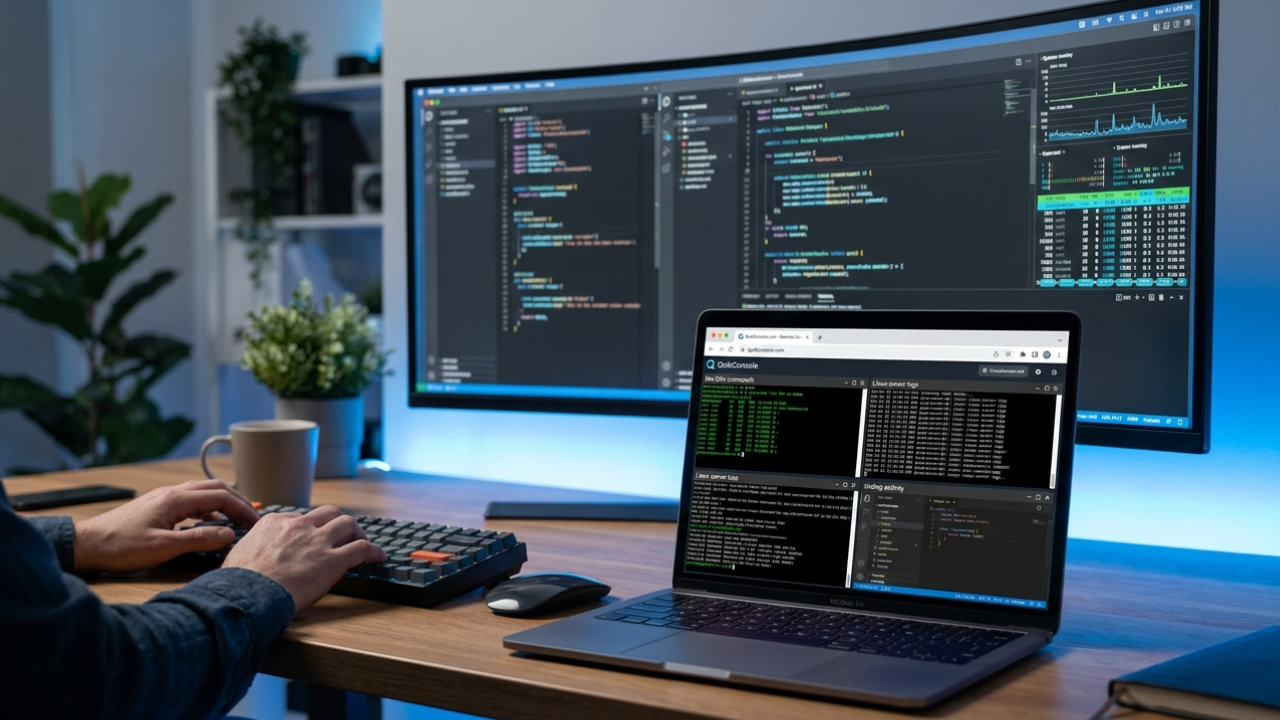
A few months ago, I was helping a friend fix a small issue on his VPS. Nothing serious — just a broken firewall rule that locked him out of SSH after an update. Normally, I’d open my usual terminal app, connect through SSH, and fix it in two minutes. But that day, I was away from my main setup and only had access to a browser on a borrowed laptop.
That’s when I stumbled across QuikConsole.
At first, I honestly thought it would be one of those lightweight “web terminal” tools that look impressive on the homepage but become frustrating after ten minutes of actual use. I’ve tested enough browser-based admin tools to know that many of them struggle with responsiveness, authentication, or even basic terminal behavior.
But after spending some time with QuikConsole, I realized it was more practical than I expected — especially for people who manage servers remotely and don’t always want to depend on installing desktop software.
This article is based on my own experience using it for small VPS management tasks, quick server checks, and emergency access situations.
What QuikConsole Actually Does
QuikConsole is essentially a browser-based terminal platform designed for remote server access and command-line management. Instead of opening PuTTY, Terminal, or another SSH client, you use the browser interface to connect to your systems.
That may sound simple, but the convenience becomes obvious when you’re switching devices frequently or helping clients remotely.
I tested it mainly with:
- Ubuntu VPS instances
- A small Debian test server
- Docker-based development environments
- Basic SSH tasks
- Log monitoring
- Service restarts
The experience felt surprisingly close to using a native terminal.
The First Thing I Noticed
The speed.
A lot of browser terminals feel laggy. You type a command and there’s a slight delay that becomes annoying fast. QuikConsole felt responsive enough that I stopped noticing I was inside a browser after a few minutes.
That matters more than people think.
If you spend hours inside command lines, even tiny delays become mentally exhausting.
I also liked that I didn’t need to install extra software on the device I was using. For someone who jumps between Windows, Linux, and temporary systems, that flexibility is useful.
Why Browser-Based SSH Can Actually Be Useful
I used to avoid browser terminals completely because I assumed they were only for beginners.
Now I think they solve a very real problem.
Here are a few situations where QuikConsole helped me:
1. Emergency Server Fixes
One night, I needed to restart a service after a failed deployment while traveling. I didn’t have my normal laptop with my SSH keys configured.
Using QuikConsole from a browser saved time because I didn’t need to install or configure anything first.
2. Working Across Multiple Devices
Sometimes I start work on my desktop and continue later on another machine.
Traditional SSH setups can become messy when you constantly move keys, configs, or saved sessions between devices.
A browser-based setup reduces some of that friction.
3. Helping Less Technical Clients
I occasionally help small business owners with basic hosting issues. Asking someone to install terminal software is often harder than solving the actual problem.
A browser interface is easier for non-technical users to understand.
Setup Experience
The setup process was simpler than I expected.
I was able to:
- Create an account
- Add server credentials
- Connect through the browser
- Start working almost immediately
The interface itself was fairly clean. No overwhelming dashboards or unnecessary visual clutter.
That’s something I appreciate in developer tools.
Too many platforms try to look “modern” by adding animations and panels everywhere. QuikConsole kept things straightforward.
Things I Tested Personally
I didn’t just run a few basic commands and stop there. I tried using it like I normally use a real terminal.
Here are some tasks I tested:
File Navigation
Basic Linux commands worked smoothly:
cdlsnanocatmkdir
No strange rendering issues appeared during normal usage.
Log Monitoring
I monitored logs using:
tail -f /var/log/syslogThe output refreshed properly without freezing the interface.
Docker Commands
I tested a few Docker operations:
docker ps
docker logs
docker restart
Again, no major problems.
Package Updates
I ran updates on a test Ubuntu VPS:
sudo apt update && sudo apt upgradeThe terminal handled long outputs reasonably well.
A Mistake I Made Early
One thing I learned quickly is that browser terminals still require proper security habits.
At first, I was connecting from random public networks without thinking too much about it. That’s not a smart habit, regardless of the platform.
Now I always:
- Use strong passwords or SSH keys
- Avoid public Wi-Fi when accessing production servers
- Log out properly after sessions
- Double-check saved credentials
- Use two-factor authentication whenever possible
QuikConsole itself felt secure enough during my usage, but users still need basic operational discipline.
A web terminal doesn’t magically replace good security practices.
Where QuikConsole Fits Best
After using it for a while, I don’t think QuikConsole completely replaces traditional terminal apps for everyone.
If you’re a heavy DevOps engineer managing large infrastructure daily, you’ll probably still prefer native tools most of the time.
But QuikConsole makes a lot of sense for:
- Freelancers
- Small hosting managers
- Developers who travel often
- Students learning Linux
- Startup teams
- Remote support work
- Quick server access from anywhere
That “access from anywhere” part is the real value.
Things I Liked Most
Fast Access
No software installation needed.
Open browser → connect → work.
That workflow is genuinely convenient.
Cleaner Than Expected
Some online terminal tools feel unfinished. QuikConsole felt polished enough for actual daily usage.
Useful for Lightweight Admin Tasks
For monitoring, restarting services, checking logs, or editing configs, it worked well.
Cross-Platform Convenience
I used it from:
- Windows
- Linux
- A Chromebook test environment
No compatibility headaches.
A Few Downsides
No tool is perfect, and there were a few limitations I noticed.
Browser Dependency
If your browser crashes or becomes unstable, your session can obviously be affected.
Native terminals still feel more reliable for long critical sessions.
Not Ideal for Massive Workflows
When managing extremely large outputs or multiple advanced sessions, dedicated terminal environments still feel more comfortable.
Muscle Memory Issues
This sounds minor, but years of using native terminals creates habits.
Browser terminals sometimes feel “slightly different” even when they work correctly.
That adjustment period is real.
Tips for New Users
If you’re planning to try QuikConsole, here are a few practical suggestions from my own experience.
Start With a Test Server
Don’t begin with your main production environment.
Use a small VPS first and get comfortable with the interface.
Configure SSH Keys Properly
This improves both convenience and security.
Password-only logins are not ideal for long-term server management.
Keep Sessions Organized
If you manage multiple servers, label them clearly.
I made the mistake of naming two servers almost identically and nearly restarted the wrong one.
Learn Basic Linux Commands First
Even with a modern interface, this is still a terminal tool.
Knowing basic commands helps a lot.
Who Probably Won’t Need It
To keep this honest, QuikConsole is not necessary for everyone.
If you already have:
- A perfectly configured SSH workflow
- Dedicated workstation setups
- Advanced terminal multiplexers
- Full local development environments
…then you may not gain much.
But for flexible remote access, quick fixes, and browser-based convenience, it solves a real problem.
My Overall Impression
After testing QuikConsole across several small projects and remote tasks, I ended up using it more often than I expected.
Not because it replaces every traditional terminal workflow.
But because convenience matters.
There’s something genuinely useful about opening a browser and instantly accessing a remote environment without dealing with installations, configurations, or missing software.
I still use native terminal applications daily. But QuikConsole became one of those backup tools that quietly earns a permanent spot in your workflow because it saves time in the exact moments you need it.
And honestly, those are usually the tools worth keeping around.
